

This article shows how to set up an SSH key-pair to allow you to log into servers in a quick, simple, and secure way from your Mac. It’s certainly worth doing if you log onto remote servers regularly.
What is an SSH Key-pair?#
An SSH key pair consists of a public key and a private key. The public key is like a lock that you install on your server, and the private key is the key you keep securely on your computer. Together, they ensure only you can access the server securely - a bit like the lock on your front door and the key you have in your pocket.
The public key can safely be shared with the server (and even others, if needed), while the private key must remain protected and known only to you.
Why Use SSH Key-pairs Instead of Passwords?#
Key-pairs are more secure than passwords because:
- They are far more resistant to brute-force attacks.
- The private key is never transmitted to the server, so it cannot be intercepted.
- They simplify access to servers by eliminating the need to type a password each time.
Generating and Using a Public/Private Key Pair on Your Mac#
Open the Terminal and run:
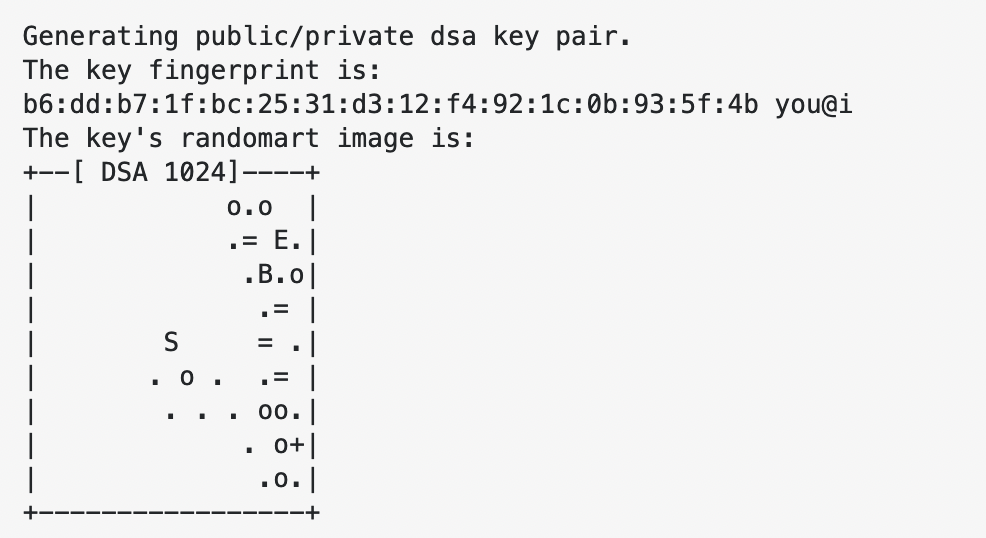
ssh-keygenWhen prompted, you may accept the default location (
~/.ssh/id_rsa) by pressing the Enter key, or by specifying a new name and location. If you already an existing key, you will probably want to pick a new name to avoid overwriting the existing one.You can optionally create a passphrase for your private key, which adds an extra layer of security. If you do, you’ll need to enter it whenever the private key is used.
Install the Public Key on the Remote Server
ssh-copy-id -i ~/.ssh/id_rsa.pub your_username@your_serverReplace
your_usernameandyour_serverwith the appropriate values for your remote host.This copies your public key and transmits it to the server.
Configure macOS to Use the SSH Key
To avoid entering the passphrase repeatedly, store the private key in your macOS keychain. Run:ssh-add -K ~/.ssh/id_rsaEnter your passphrase when prompted. The keychain will now remember it.
Configure SSH for Convenience
Create or edit your SSH configuration file (~/.ssh/config):nano ~/.ssh/configAdd the following configuration:
Host *
UseKeychain yes
AddKeysToAgent yes
IdentityFile ~/.ssh/id_rsa
This tells SSH to automatically use your private key from the keychain.
For specific servers, you can define individual entries:
Host your_server
HostName your_server
User your_username
IdentityFile ~/.ssh/id_rsa
Test the SSH Connection
Try logging into the server:ssh your_serverIf everything is set up correctly, you should be logged in without being asked for a password or username.
Tips for Managing SSH Keys#
Permissions#
Ensure your private key has the correct permissions to avoid warnings:
chmod 600 ~/.ssh/id_rsa
Troubleshooting#
If you encounter issues, use verbose mode to debug:
ssh -v your_server
Treat your Private Keys like.. um.. your keys#
Your private key allows access to your server with your permissions, just like your house keys allow the person holding them to enter your house. Therefore treat them in a similar way.
- Store your private keys in secure locations.
- Generally, don’t share your private keys.
- Use a passphrase for added security, especially if you’re storing your private key on shared devices.
Conclusion#
Using SSH key-pairs simplifies and secures access to remote servers. Once set up, you’ll save time and improve security for all your remote connections. This method is widely supported, so you can use similar steps on Linux or Windows with tools like PuTTY or WSL. Start using SSH key-pairs today for a more seamless and secure workflow!